Click the New Item  icon in the tool bar.
Use this task to:
Follow this path: Administration tab > Organizational Setup banner > Supervision Hierarchy sub-banner.
The Supervision Hierarchy page is displayed.
Click the New Item
icon in the tool bar.
The Supervision Level Detail page is displayed. View field definitions.
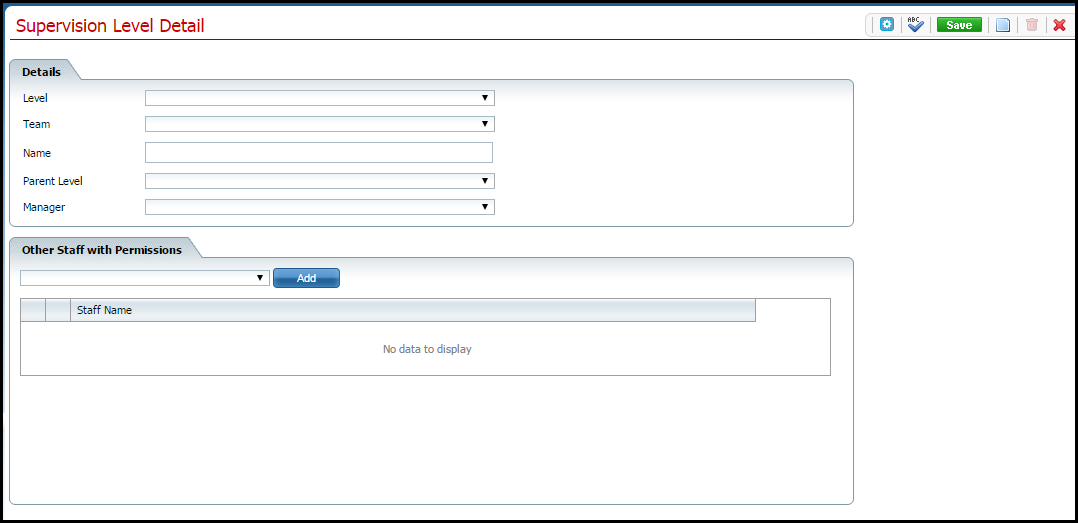
Complete the Details section of the page.
When you create the Organization level, there is no Parent Level.
Click the Save button.
If you want to add a Division,
click the New Item icon in the tool bar.
Refer to Add a Division to a Program for the instructions.
To close the Supervision Level Detail page, click the Exit  item
in the tool bar.
item
in the tool bar.
Follow this path: Administration tab > Organizational Setup banner > Supervision Hierarchy sub-banner.
The Supervision Hierarchy page is displayed.
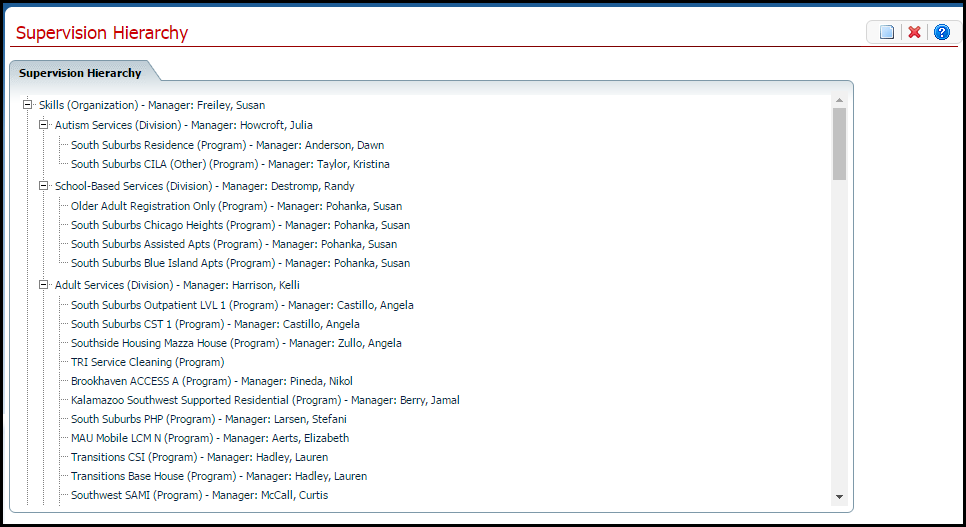
Click on the Organization level hyperlink.
The Supervision Level Detail page is displayed. View field definitions.
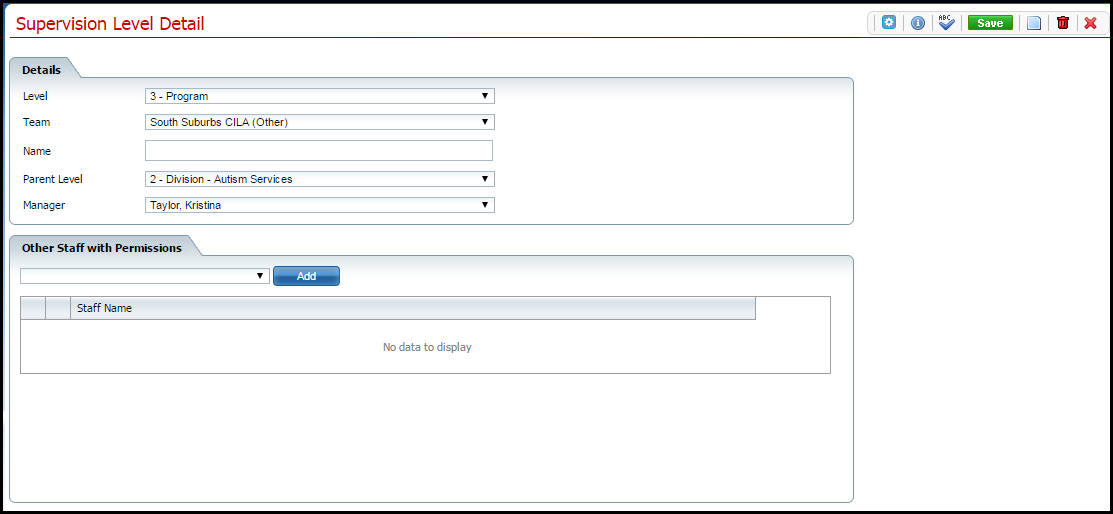
Make changes in the Details section of the page.
Click the Save button.
Click the Exit
item in the tool bar.
Remember that if you delete the Organization, you will delete all the Divisions, Programs and Staff that you have added.
Follow this path: Administration tab > Organizational Setup banner > Supervision Hierarchy sub-banner.
The Supervision Hierarchy page is displayed.
Click on the Organization level hyperlink.
The Supervision Level Detail page is displayed. View field definitions.
Click the trash can
 item in the tool bar.
The Confirmation Message window is displayed.
Click the Yes button in the Confirmation Message window.
The Supervision Hierarchy page is displayed.